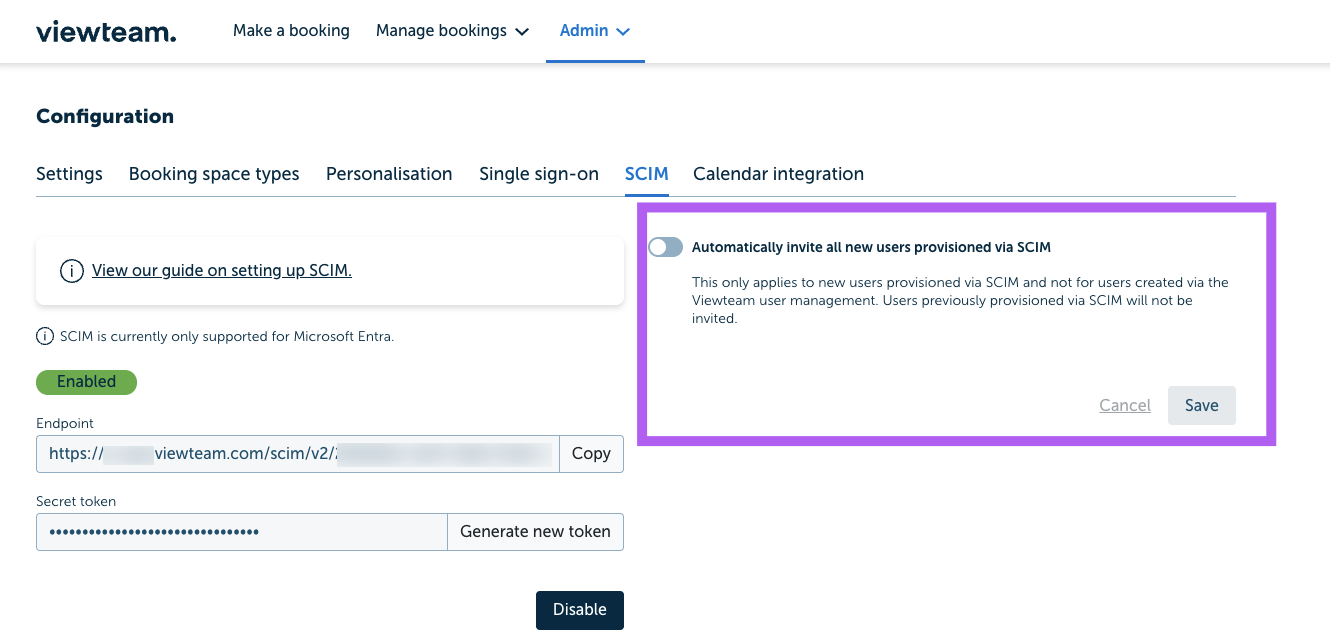
Setting up SCIM using Microsoft Entra
This page walks you through setting up SCIM using Microsoft Entra.
Viewteam Enterprise plan is required.
Note: only admins and account owners can configure SCIM.
- Log in to the Microsoft Entra (Identity) admin console
-
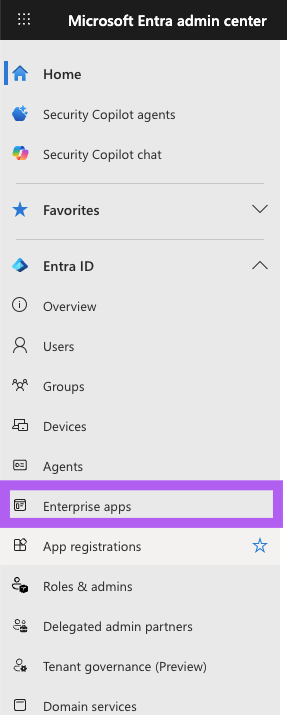
Navigate to the 'Enterprise apps' section
-
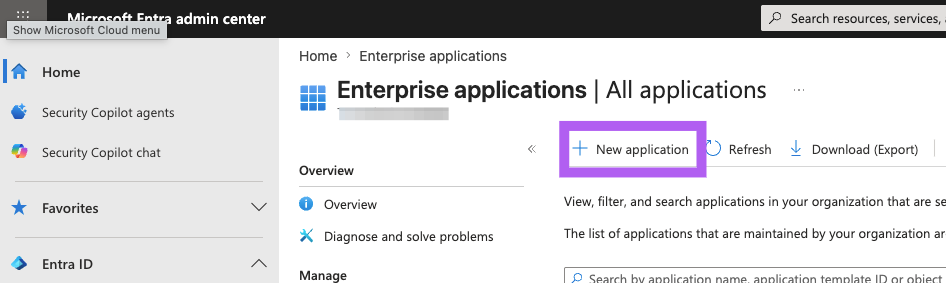
Click 'New application'
-
Click 'Create your own application'

-
Fill in 'What's the name of your app?' (can be anything you like) and make sure that 'Integrate any other application you don't find in the gallery (Non-gallery)' is selected
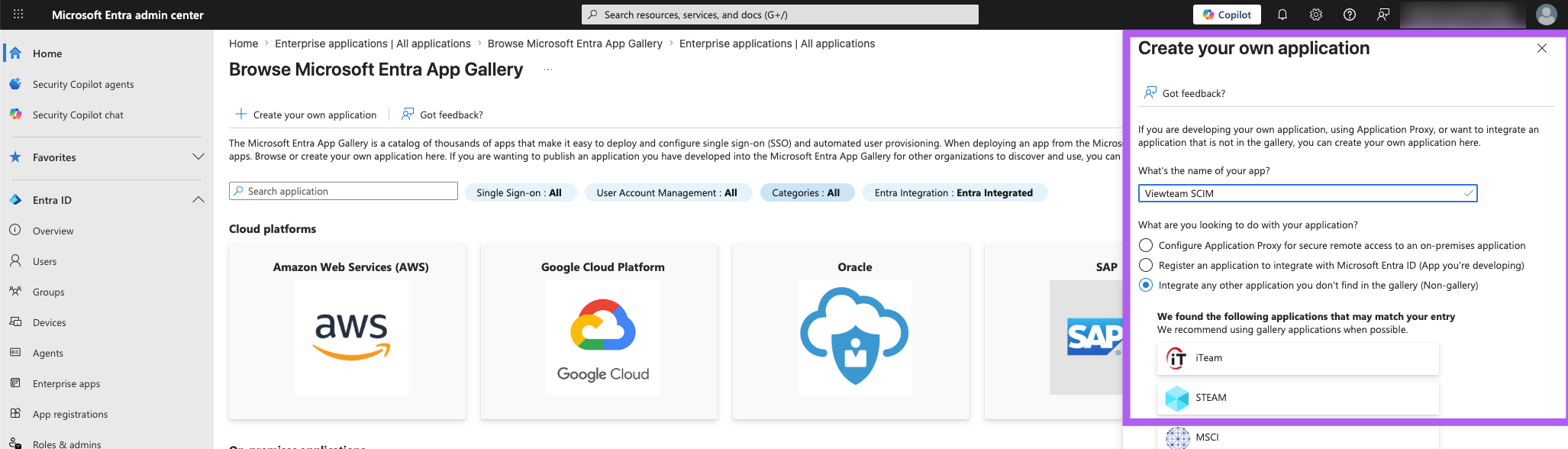
- Click 'Create'
-
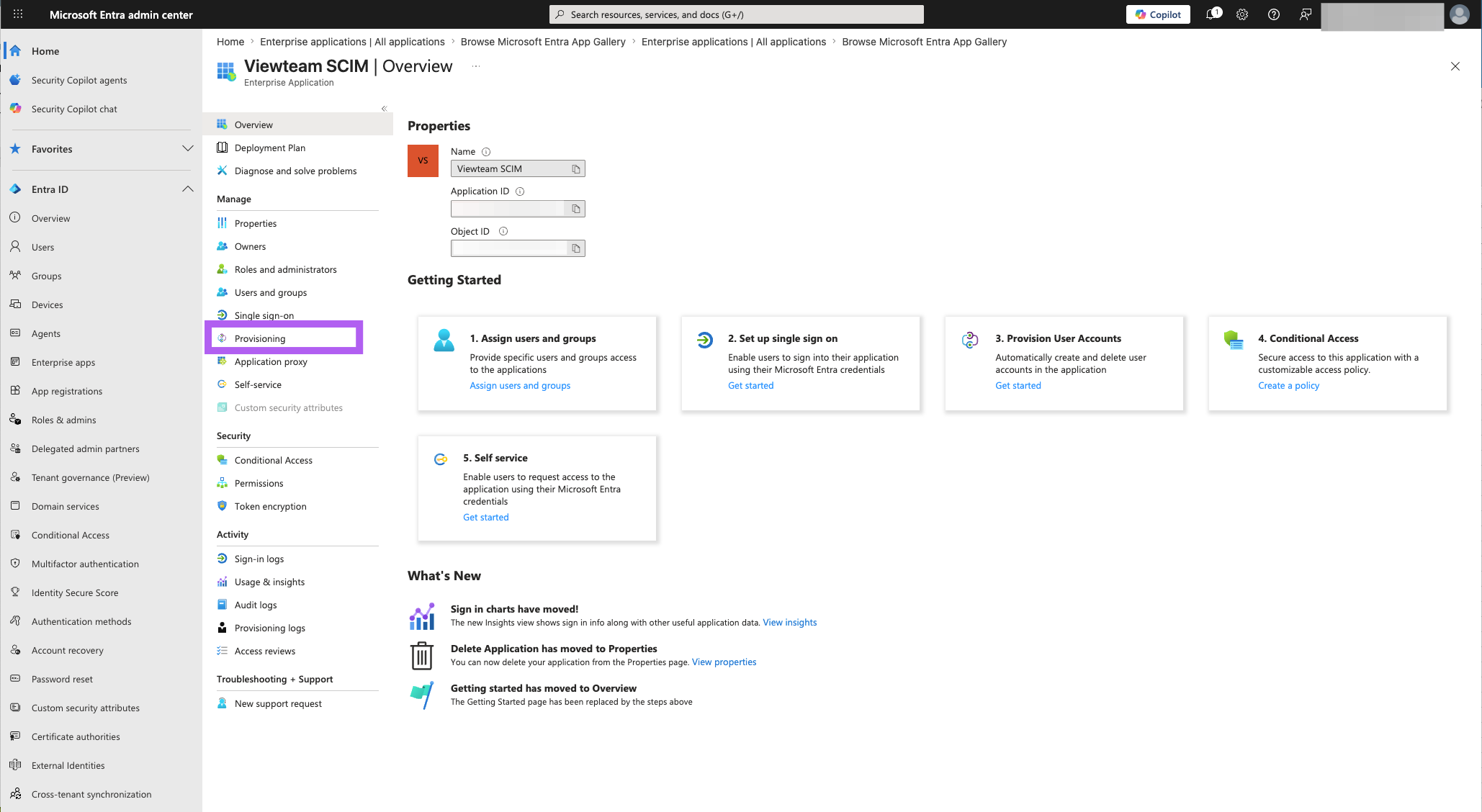
Once the app is created (this might take a few minutes) you will be presented with the overview screen. Click 'Provisioning' from the side nav as shown (not the Provision User Accounts Box)
-
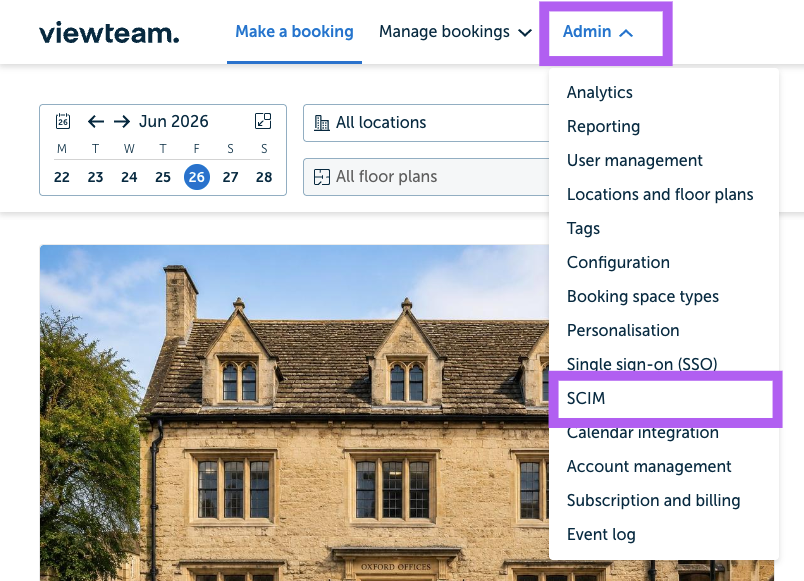
Log in to View team and select 'Admin' -> 'SCIM'
-
Click 'Generate SCIM credentials'
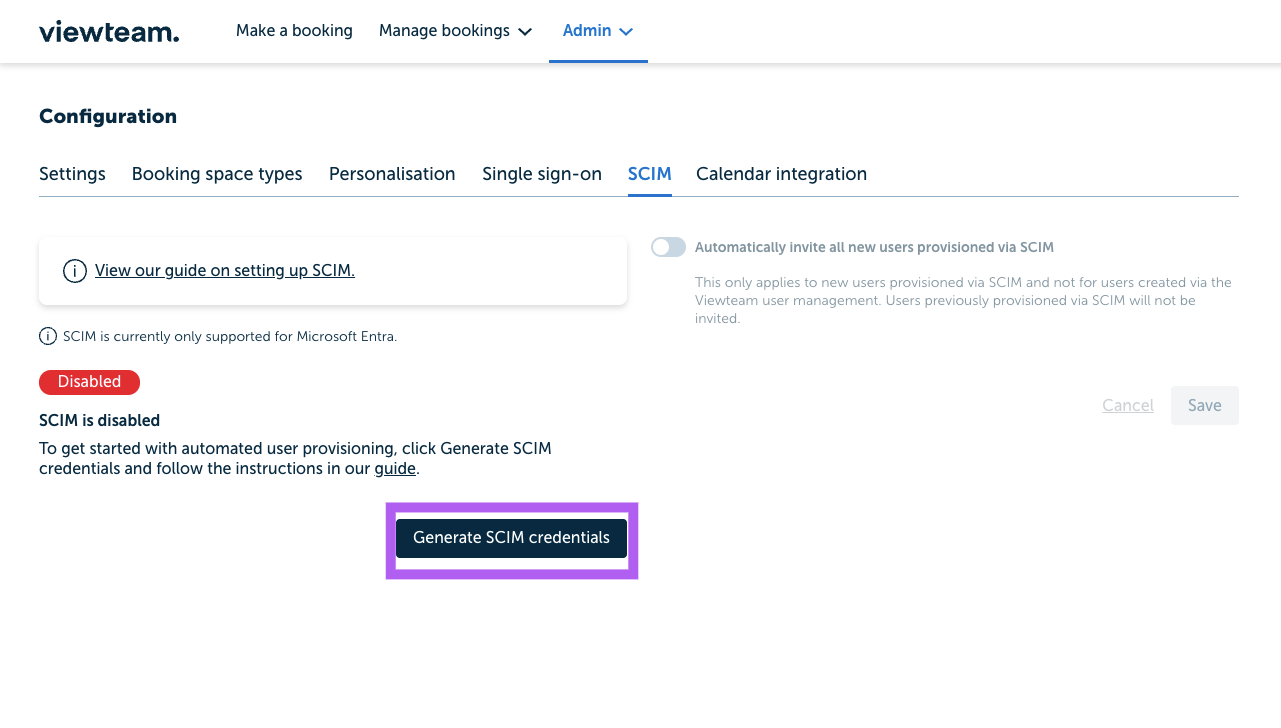
- Make a note of the Secret Token as it will not be shown again.
-
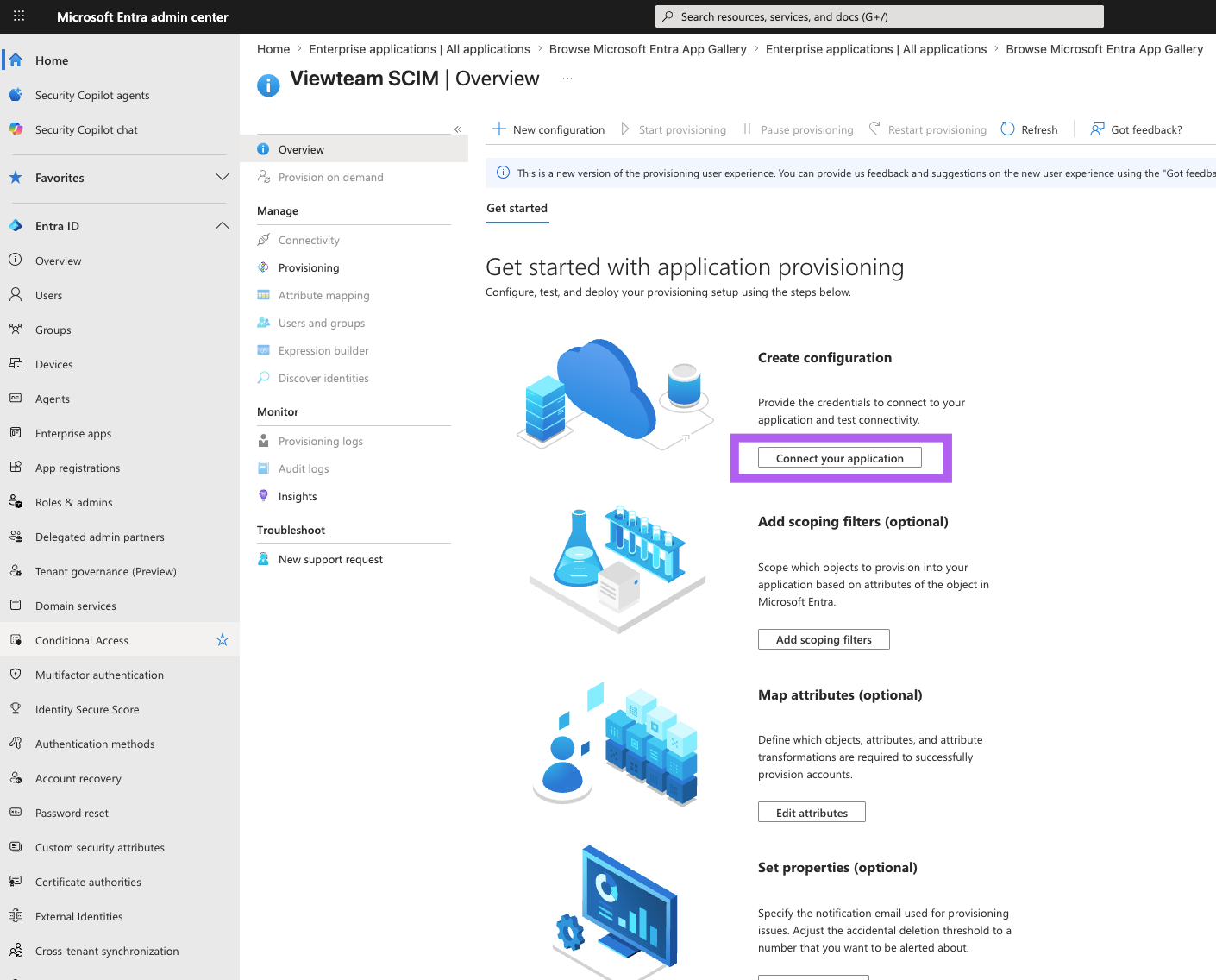
Go back to Entra, click 'Connect your application'
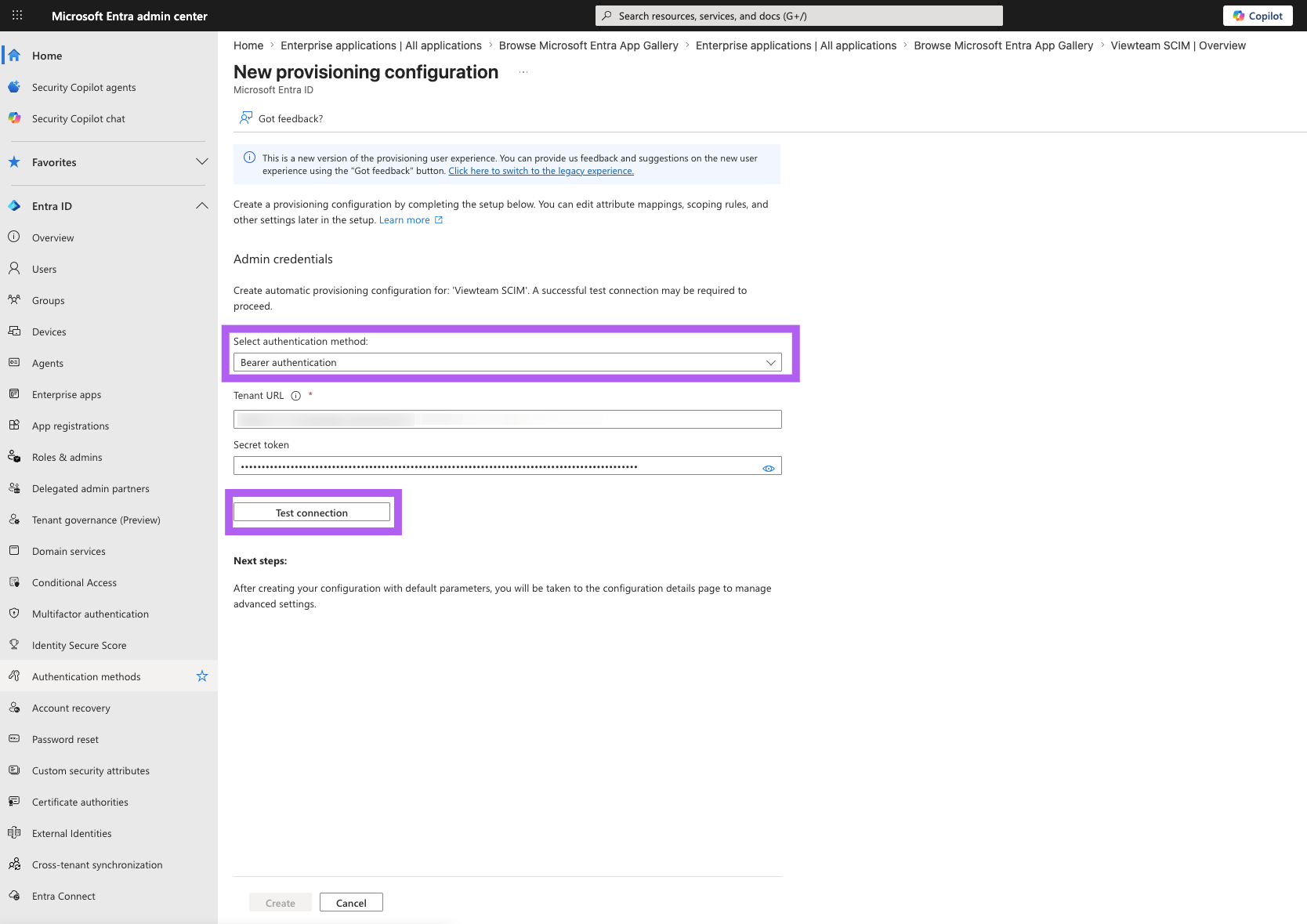
- Make sure that the selected authenticated method is 'Bearer authentication'
- Add the Endpoint URL from Viewteam into the Tenant URL field and add the secret token from Viewteam into the 'Secret token' field
-
Click 'Test connection'
-
You should see a success message and the 'Create' button should be enabled
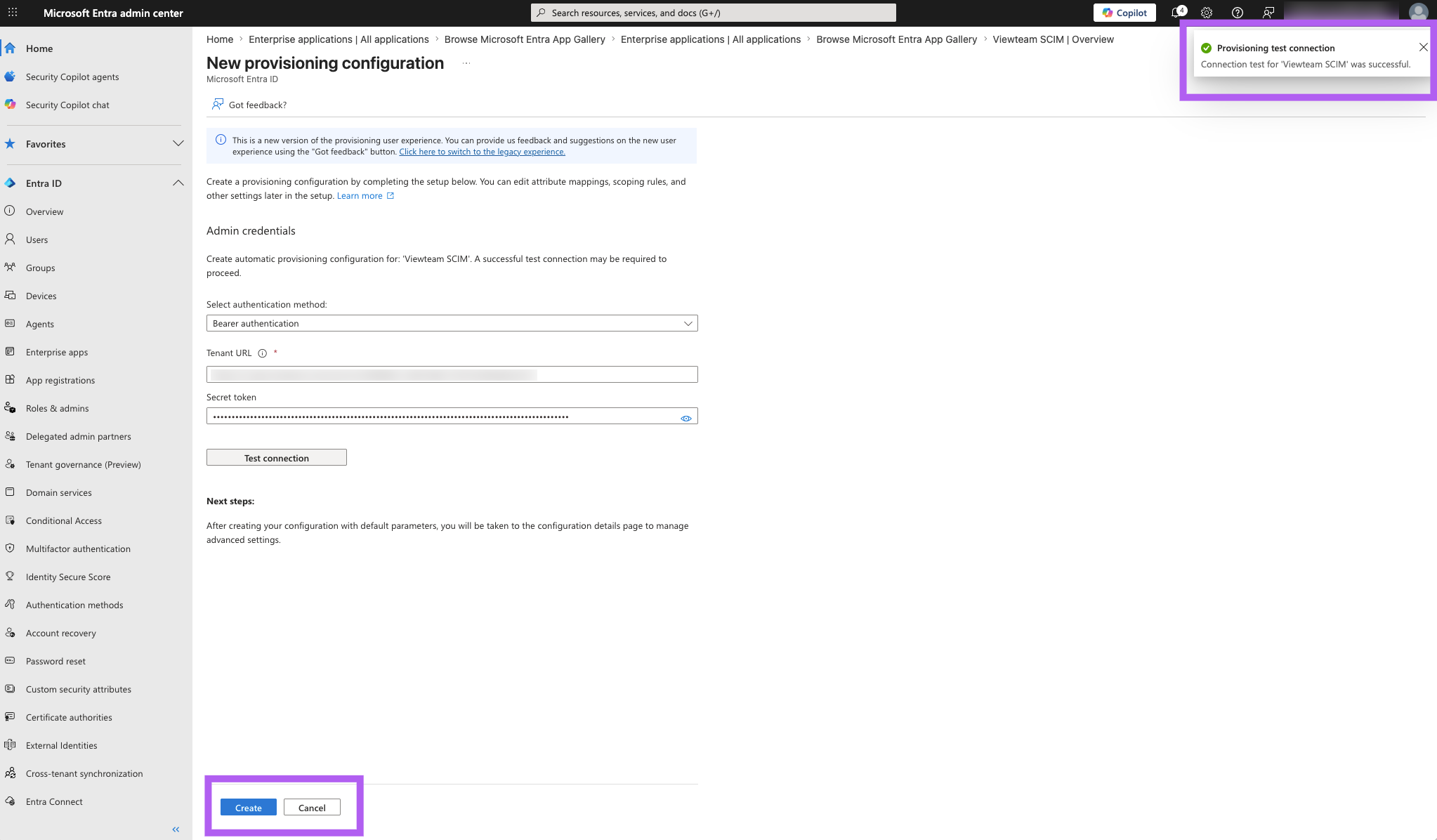
- Click 'Create' this will take you back to a new overview screen
-
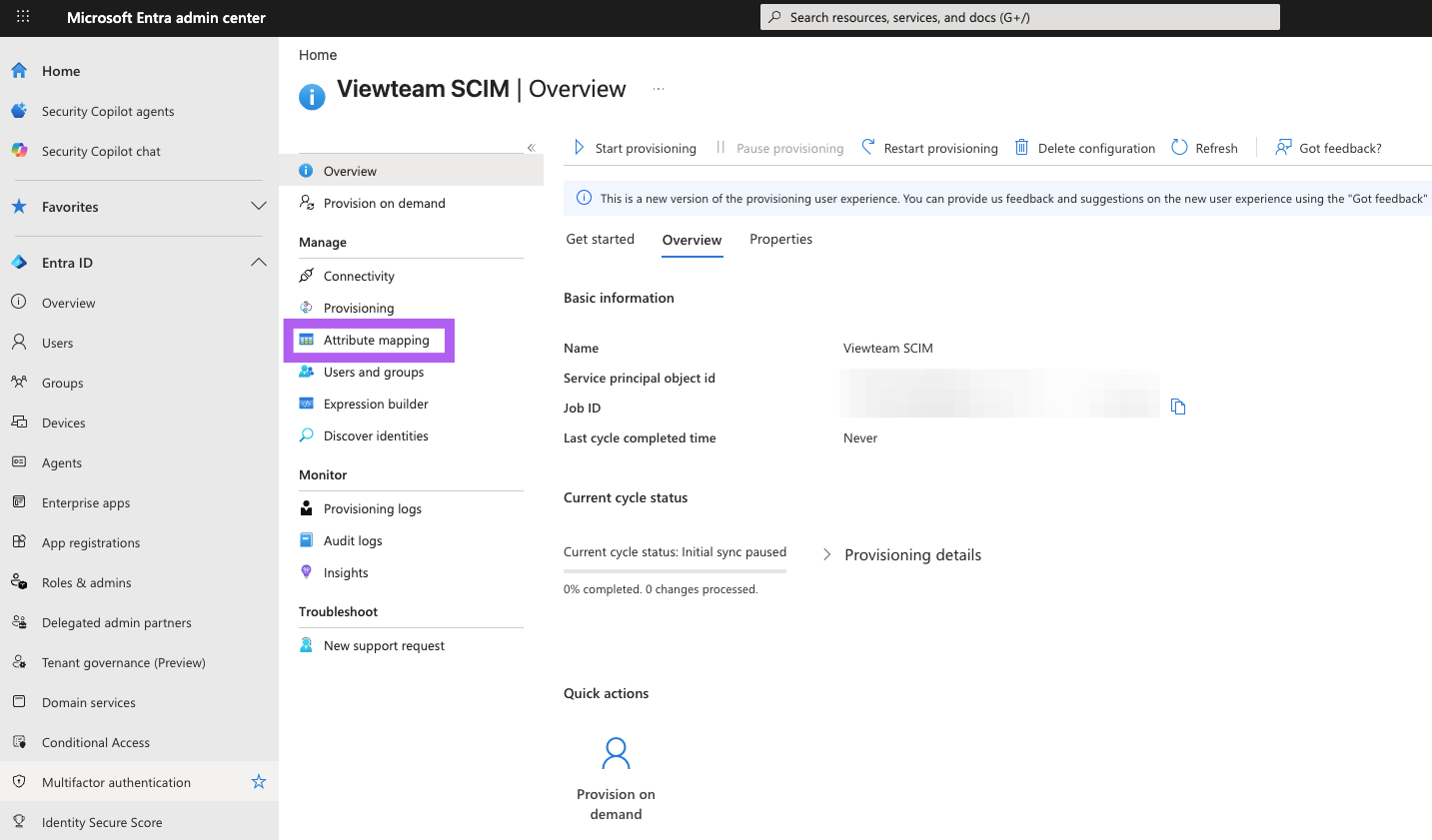
Click in 'Attribute mapping' in the side Nav menu
-
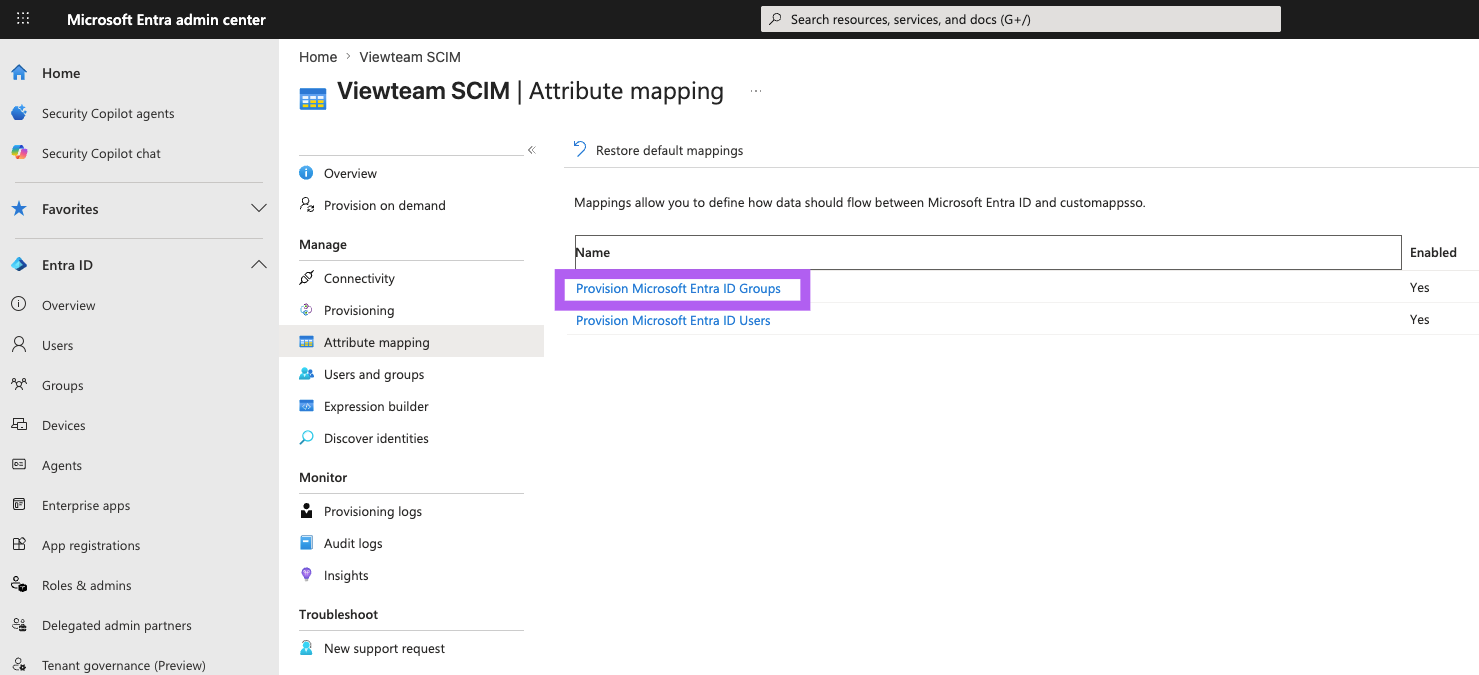
Start by clicking 'Provision Microsoft Entra ID Groups'
-
Remove the 'externalId/objectId' mapping by click the 'Delete' button. Your screen should look like this
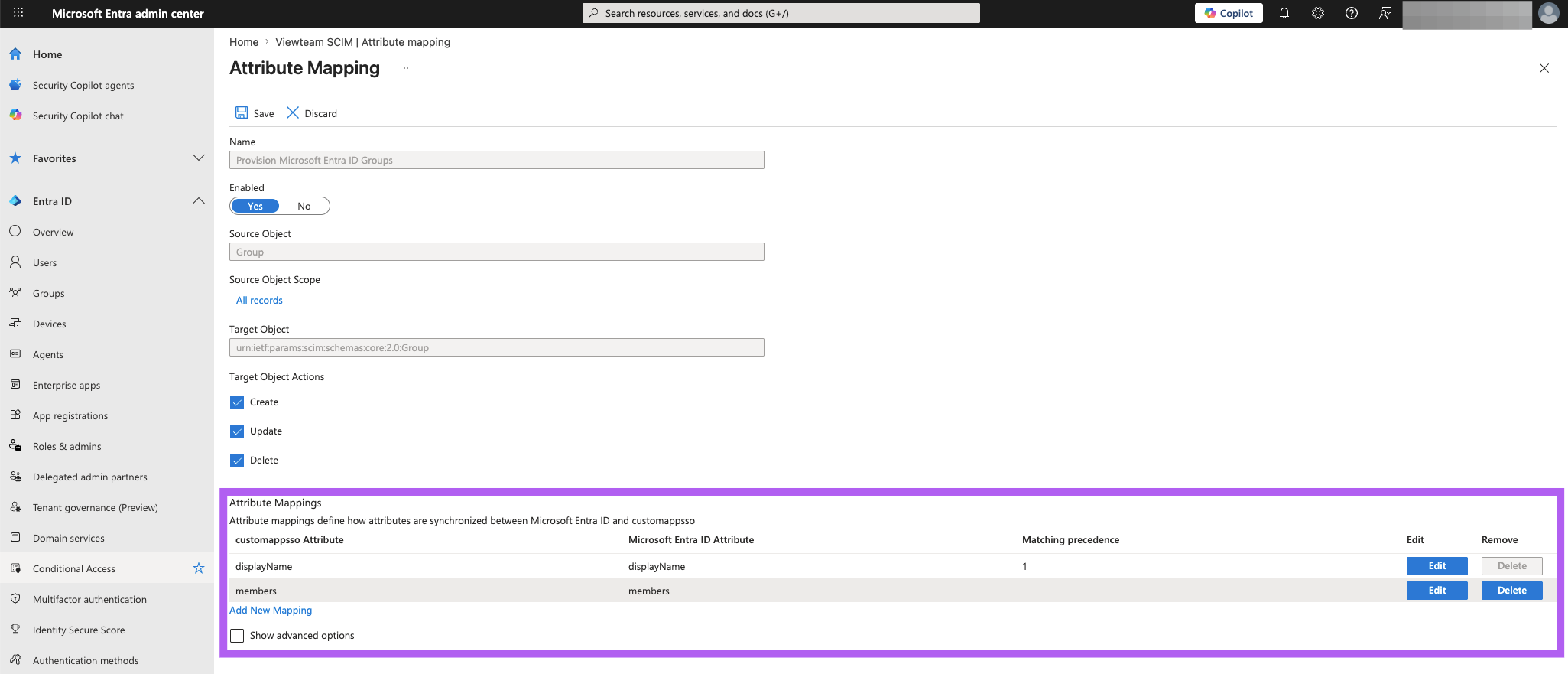
-
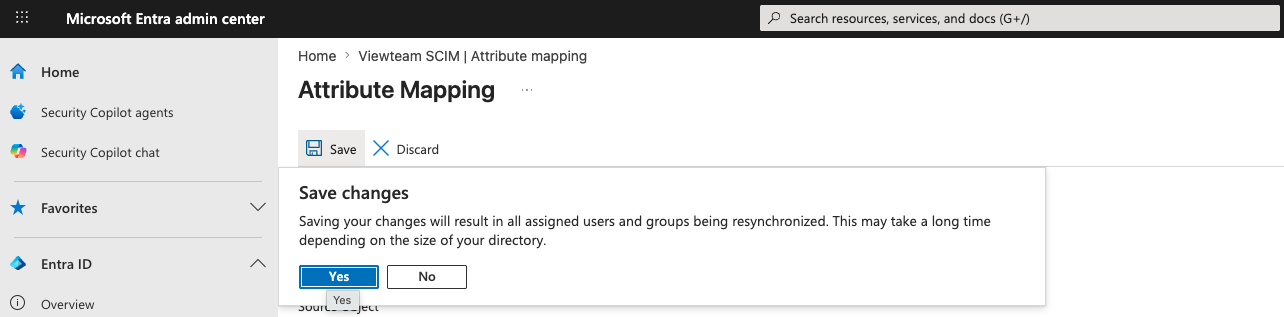
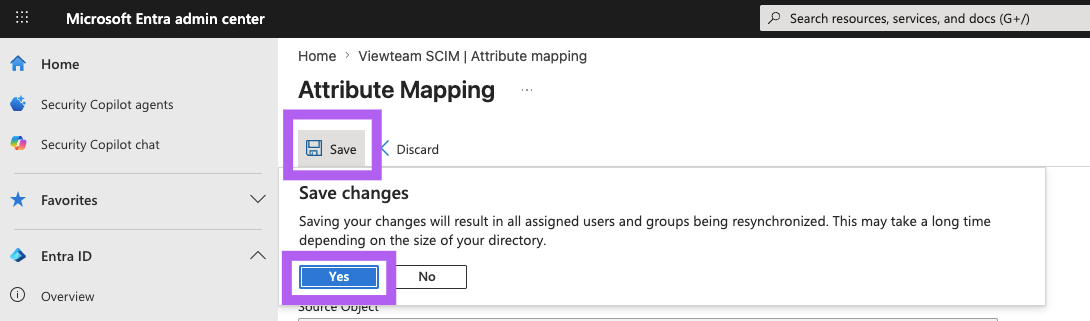
Click the 'Save' button (select 'Yes' in the popup) and then close the blade
-
Next, click 'Provision Microsoft Entra ID Users'
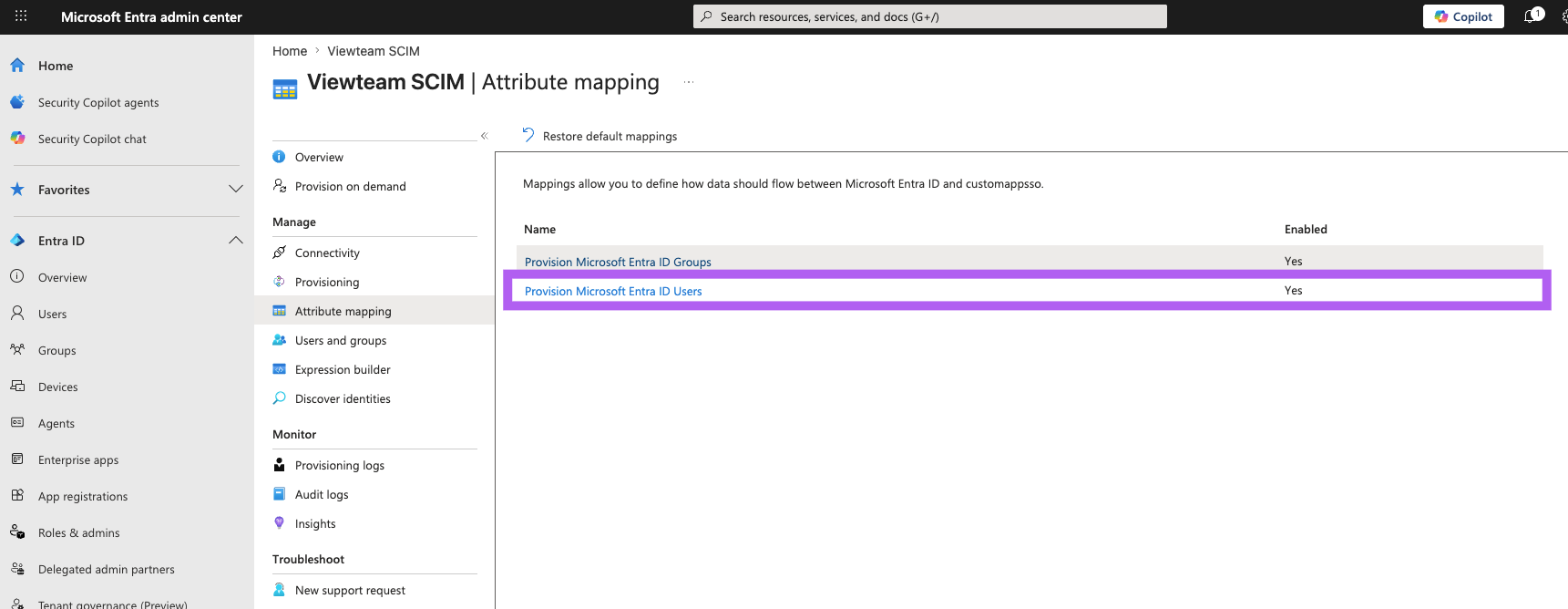
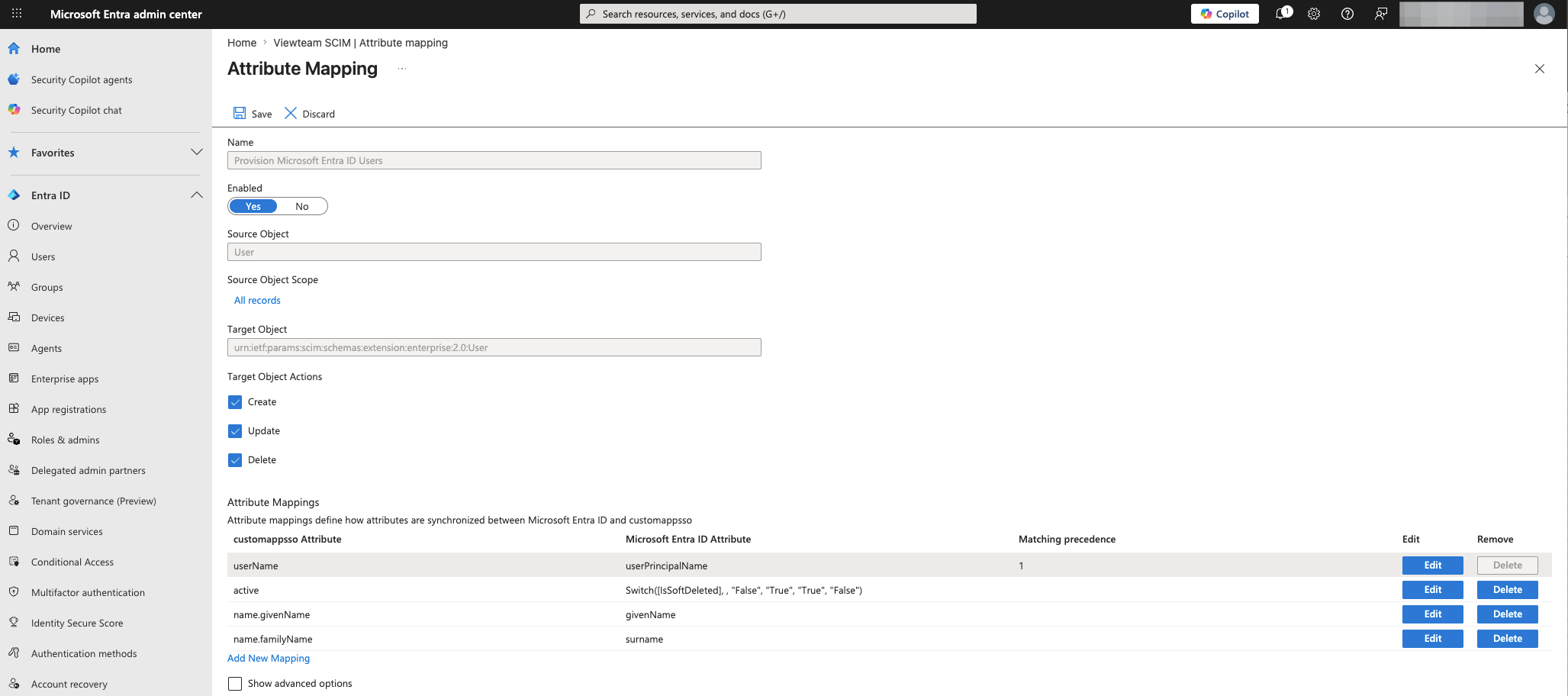
- Remove all of the fields (by clicking 'Delete') except for the following:
- userName/userPrincipalName
- active/Switch([IsSoftDeleted], , "False", "True", "True", "False")
- name.givenName/givenName
- name.familyName/surname
-
Your screen should look like this:
-
Click the 'Save' button (select 'Yes' in the popup) and then close the blade
-
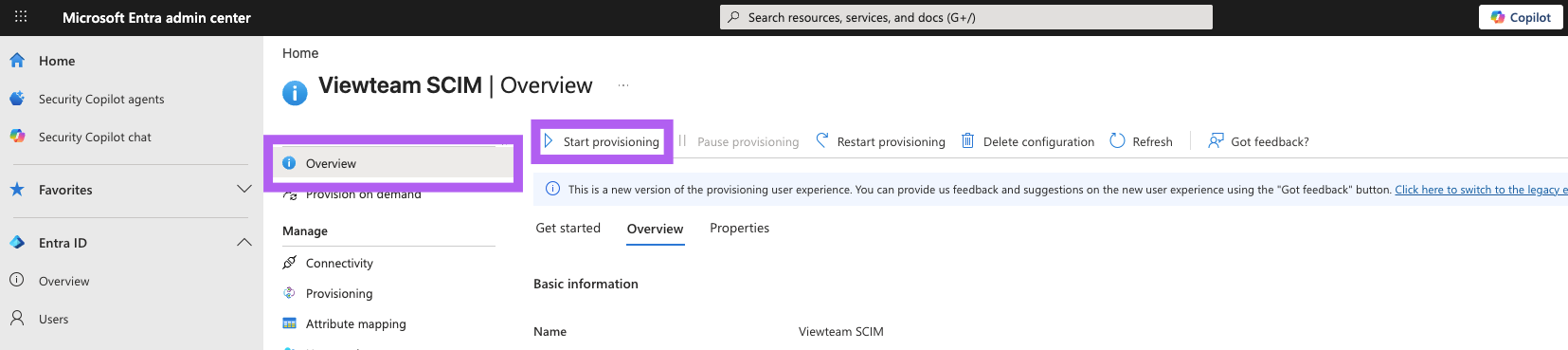
Finally, go back to the Overview page and click 'Start provisioning'
- SCIM is now configured.
-
In Viewteam you need to decide if you want to 'Automatically invite all new users provisioned via SCIM' of manually invite them afterwards